Showing posts with label fix. Show all posts

Friday, December 9, 2016

RPi Videolooper Not booting blinking cursor bug fix

,

VideoLooper 4 (bug fix)!!

Wanted to apologize to everyone for the blinking cursor bug with the newest videolooper. I introduced it without realizing it by over-aggressively shrinking the partition to ease the download. If you have that bug you can download the newest version below, which fixes that. 

Alternatively, you can do the following (Thanks to Anthony Calvano for this) :
SSH in or press Windows key + R at the blinking menu, then you can extend the partition using the directions at "Manually resizing the SD card on Raspberry Pi" located at http://elinux.org/RPi_Resize_Flash_Partitions.


This image is compatible with the A,B,B+, and B 2 versions. 

I have a brand new version of the Raspberry Pi Videolooper that is compatible with the new B V2 and has a bunch of new features that streamline it for easy use.
It can now loop one video seamlessly (without audio though) thanks to a solution from the talented individual over at Curioustechnologist.com (link here). And again thanks to Tim Schwartz as well (link here).

You can download the new image here:

https://onedrive.live.com/redir?resid=e0f17bd2b1ffe81!411&authkey=!AGW37ozZuaeyjDw&ithint=file%2czip

MIRROR: https://mega.co.nz/#!JBcDxLhQ!z41lixcpCS0-zvF2X9SkX-T98Gj5I4m3QIFjXKiZ5p4


For help you can post on the Raspberry Pi subreddit (probably the best way to get fast help) or email me (be forewarned, I respond intermittently and sporadically)

How to set up the looper

  1. Copy this image to an SD card following these directions
  2. If you want to use USB, change usb=0 to usb=1 in looperconfig.txt on the SD card (It is in the boot partition which can be read by Windows and Mac).
  3. If you want to disable the looping autostart to make copying files easier, change autostart=1 to autostart=0 in looperconfig.txt
  4. If you want to change the audio source to 3.5 mm, change audio_source=hdmi to audio_source=local in looperconfig.txt.
  5. If you want to play a seamless video (supports only one for now), convert it according to these directions, put it in the videos folder, and then change seamless=0 to seamless=name-of-your-video.h264 in looperconfig.txt. (NOTE: This video wont have audio so take that into account).
  6. You may also want to expand your filesystem to it your SD card by using sudo raspi-config as detailed here: http://elinux.org/RPi_Resize_Flash_Partitions.
  7. If you arent using a USB (NTFS) put your video files in the /home/pi/videos directory with SFTP or by turning autostart off. Otherwise, put your video files in a directory named videos on the root directory of your USB.
  8. Set your config options and plug it in!

Features

  • NEW: Has an audio_source flag in the config file (audio_source=hdmi,audio_source=local)
  • NEW: Has a seamless flag in the config file (seamless=0,seamless=some-file.h264)
  • NEW: Has a new boot up splash screen
  • NEW: Compatible with the RPi B2 (1 GB RAM version)
  • NEW: Updated all packages (no heartbleed vulnerability, new omxplayer version)
  • Has a config file in the boot directory (looperconfig.txt)
  • Has a autostart flag in the config file (autostart=0,autostart=1)
  • Has a USB flag in the config file (usb=0,usb=1), just set usb=1, then plug a USB (NTFS) with a videos folder on it and boot
  • Only requires 4GB SD card and has a smaller zipped download file
  • Supports all raspberry pi video types (mp4,avi,mkv,mp3,mov,mpg,flv,m4v)
  • Supports subtitles (just put the srt file in the same directory as the videos)
  • Reduces time between videos
  • Allows spaces and special characters in the filename
  • Full screen with a black background and no flicker
  • SSH automatically enabled with user:pi and password:raspberry
  • Allows easy video conversion using ffmpeg (ffmpeg INFILE -sameq OUTFILE)
  • Has a default of HDMI audio output with one quick file change (replace -o hdmi with -o local in startvideos.sh).
  • Can support external HDDs and other directories easily with one quick file change (Change FILES=/home/pi/videos/ to FILES=/YOUR DIRECTORY/ in startvideos.sh)

Source code

The source code can be found on github here. 

This is perfect if you are working on a museum or school exhibit. Dont spend a lot of money and energy on a PC running windows and have problems like below (courtesy of the Atlanta Aquarium)!
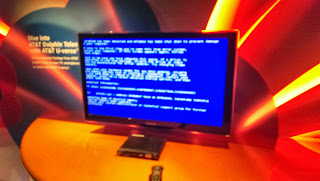
If you are a museum or other educationally based program and need help, you can post on the Raspberry Pi subreddit (probably the best way to get fast help) or contact me by e-mail at help@stevenhickson.com

Consider donating to further my tinkering since I do all this and help people out for free.


Places you can find me
Read more

Monday, December 5, 2016

Voicecommand Update and Fix for Google Speech v2 0

,
Sorry it took so long for this. Googles deprecation of the Speech v1.0 api came at the worst possible time for me as it was right before I started driving across the country.

I didnt get to fix it yesterday when I got into San Francisco either because I ended up going to Maker Faire and then hung out at a bar with all the Hackaday people. I met the guy who invented sudo and figured out I have the same watch as Mike Szczys.

Anyways, Ive fixed voicecommand to work again and I fixed a couple of small bugs, including one in the install script which didnt copy the voicecommand config properly.

To get the fix, just run the update script (or reinstall if you are having config file issues).
I detailed how to update here:
http://stevenhickson.blogspot.com/2013/06/installing-and-updating-piauisuite-and.html

Heres a picture from Maker Faire for your trouble!


Consider donating to further my tinkering since I do all this and help people out for free.


Places you can find me
Read more

Thursday, November 24, 2016

Fix the problem of Show hidden files and folders getting reset

,
Fix the problem of Show hidden files and folders getting reset
This is a common problem these days that the option of “Show hidden files and folders” always gets reset each time when we set it to show the hidden files. This is sure a case of infected system either with Trojan or virus.
Possibly the system is infected by a virus named “amvo.exe”. So let’s remove this first to be on a safer side.

Steps to remove amvo.exe:
1. We need to delete following files
  • amvo.exe
  • amvo0.dll
  • amvo1.dll

2. Open command prompt by typing cmd in the Run box. Then type
  • cd windowssystem32
  • attrib -s -h -r amvo*.*
  • del amvo*.*

Steps to fix the problem:
  1. Now open registry editor and navigate to the entry HKEY_LOCAL_MACHINESOFTWAREMicrosoftWindowsCurrentVersionExplorerAdvancedFoldersHiddenSHOWALL
  2. On the right side see the entry named “CheckedValue”, if the value is set to ‘0? change it to ‘1?.
  3. The “DefaultValue” under the “CheckedValue” should be set to ‘2?.
  4. Click Refresh under the view tab and if the entries the same that we set just now that means the problem is solved.
Read more

Tuesday, April 12, 2016

Fix the Problem Ejecting USB Mass Storage Device error

,
This must have happened to each of us many times that when we click the “Safely Remove Hardware” icon in the system tray to remove hardware, we get an error message saying “The device ‘Generic Volume’ cannot be stopped right now. Try stopping the device again later”.


One of the reason for this problem may be that the pen drive is still in use and some data is either being read from it or being written into it. That means some process is using the drive but we do not know what the processes are that are accessing the drive.

Steps to Fix the Problem Ejecting USB Mass Storage Device:
1. End the processes that are using the USB drive:
Download and install this software called as Unlocker, now open My Computer, right click on your USB drive icon, click on Unlocker.


Now click on Unlock All to kill all the processes using the Drive. Now the drive should get safely removed.

2. Clean the system infected by viruses:
If the first step fails that means the process that is accessing the pen drive is a virus for sure. So to clean the system just scan the computer with a good updated Anti Virus and delete the viruses that are found. The problem would certainly get solved.
Read more

Thursday, March 24, 2016

Fix Bugs in Windows Media Player using Fix WMP Utility

,
Windows Media Player is a default media player in windows and is used by most of the windows users. Its look and feel are good so even i prefer using WMP. But over a period of time, some bugs are created. A great utility is available to fix these bugs. "Fix WMP Utility v 1.0"

Its a free utility developed by The Windows Club. It re-registers all the concerned Windows Media dll files required for the smooth functioning of Windows Media Player.If you experience any problem or you get error messages while playing any audio or video in WMP you can run this utility to fix the issues. It re-registers over 40 dlls required for smooth functioning of Windows Media Player.

Please create a System Restore point before using this utility for safety. However this utility is tested and works fine in Windows Vista and Windows 7 and should work for

all versions of Windows and Windows Media Player.

Below are some screenshots of the software:


Download Fix WMP Utility v 1.0 here
Read more

Sunday, February 21, 2016

How to fix Raspberry Pi boot problems

,
If you have any problems with your SD card messing up or your Pi not booting, this is an attempt at documenting my issues with booting or SD card corruption and how I fixed them.

This can range from problems with rpi-update to changing the /boot/config.txt file to restoring the SD card superblocks from the superblock backup to Oh No my SD card is hosed and I need to recover files. Weve all been there so need to be embarrassed about messing something up. Things mess up a lot.

Boot Problems

First of all, this is a great reference that I use a lot.
Start by figuring out what changed.
  • Did you just change your /boot/config.txt?
  • Did you delete any important files?
  • Did you run rpi-update?
  • Did you add a new device?
  • Did you overclock too much?
  • Do you get a kbd prompt?
  • Did it run some weird commands on the shutdown about "device still open for writing"?
If you just changed your config.txt, you should change it back and then change line by line while rebooting until you see what option is causing the error.

If you deleted any files, restore them.

If you ran rpi-update and it wont reboot, try making your /boot/config.txt the default one. The cma_lwm and cma_hwm options sometimes cause the new firmware to break.
If that doesnt work or you have flashing light errors, restore the old boot files by copying the /boot.bak/ files into /boot/
sudo cp -ap /boot.bak/* /boot/

If you recently overclocked, try reducing it back down. I run 1100 MHz easily but 1200 MHz tends to be unstable for me.

If you get a kbd prompt or error, check your power supply to make sure its supplying enough voltage, then reduce any overclocking or overvolting in your config.txt, then (if the first two dont solve it) replace the boot files like described above.

If you have a kbd prompt that you couldnt fix, you get read/write or I/O errors on shutdown or startup, or 
it cant find the ext4 partition, then you have been a victim of SD card corruption.
Dont worry though. There are still ways to recover your files.

The first thing you should do is make a copy of your SD card image.
Plug the card into another computer with linux and use dd to copy the image. Then you can try to fix the image file without further corrupting the data.
The first thing to try to do is replace your superblock with a backup. To do that click here.
If that doesnt work and all else fails, it is possible to use scalpel and custom recovery configuration to get your files. See here for how to do that.

Consider donating to further my tinkering


Places you can find me
Read more
 

Computer Info Copyright © 2016 -- Powered by Blogger