Showing posts with label password. Show all posts

Wednesday, January 25, 2017

You can change your Windows Password if forget the current password

,
passw


1st step: go to run then type this code lusrmgr.msc and then enter.
computer tricks


2nd step: open a new window then click users folder 


3rd step: The you can see your windows username 


4th step: follow my image instruction


Read more

Wednesday, January 4, 2017

How to hack BIOS password in Desktop and Laptop

,
Bios password Hack
The following steps to hack BIOS password work absolutely fine for a Desktop and are the easiest of all.
Steps:
  • Shut down the computer and take out all the plugs connected to electricity.
  • Open up the CPU cabinet and locate the CMOS battery on the motherboard (it will be a silver circular battery just like a button cell).
  • Remove the battery and keep it out for some 2-3 minutes as this will flush out the CMOS memory which stores the BIOS password and all other configurations.
  • Now place the battery back and start the computer normally.

Steps for Laptop:
  • Open up the BIOS at the time of booting.
  • There are some backdoor passwords which the manufacturing company had set that will be accepted by the BIOS. You will just need to know the make of your BIOS.Try out the passwords from these lists.
List of Award BIOS backdoor passwords:
  • BIOSTAR, AWARD_SW, AWARD SW, AWARD PW, CONDO, LKWPETER, J262, 01322222
  • List of AMI BIOS backdoor passwords:
  • AMI, AAAMMMIII, BIOS, PASSWORD, A.M.I., CONDO
  • List of PHOENIX BIOS backdoor passwords:
  • phoenix, PHOENIX, CMOS, BIOS
you can also try this utility CmosPwd 4.8

Note: Read Disclaimer before use.
Read more

Thursday, December 22, 2016

PC user does not know the password changed despite his previous password WITH VIDEO TUTORIAL

,


Follow my image instruction:

1
2

3

4

5

6

7


 if you have facing any problems then watch this videos


Read more

Wednesday, October 5, 2016

Password protect internet explorer8 Browser

,
Below are the steps to password protect Windows IE8 without any software.
  1. Open Internet Explorer.
  2. Select Tools >> Internet options.
  3. Click on content tab.
  4. Under Content Adviser, Click Enable.
  5. A Content adviser window pops up, you need to set admin password.
  6. Click on General tab on the new window.
  7. Click on create password
  8. Type-in the password and write a password hint to recover the password in case you forget your password.
  9. Click OK twice.
  10. Now, Whenever you open a site you will have to enter the password to gain access.
Read more

Wednesday, September 28, 2016

BlueStacks

,
BlueStacks
Tags: bluestacks app player, bluestacks review, bluestacks rage of bahamut, bluestacks for mac, bluestacks cloud connect, bluestacks emulator, bluestacks root, bluestacks google play, bluestacks alpha

BlueStacks: Android application software running on the computer. You are like the applications on the Android market but not with devices running the Android operating system to test it?

CafeF1.com bluestacks chay android tren may tinh mot cach de dang 2011 01 BlueStacks: ph?n m?m ch?y ?ng d?ng Android trên máy tính

You want to run applications on the Android love with your computer? You can turn that dream into reality by the use of BlueStacks. BlueStacks is an application for Windows that allows you to be able to run Android applications on your computer instantly without restarting the computer.
The installer weighs nearly 118MB of application, compatible with both 32 bit and 64 bit windows. In addition, there is a video installation manuals software through the basic steps.
BlueStacks allows you to download new applications to BlueStacks using your web browser. Also, you can also move applications on your phone BlueStacks through Cloud Connect - an application on the phone can download the Android market.
Download the software here .
Pass to extract: apkviet.com
Read more

Monday, August 22, 2016

The instructions on the screen to unlock the password is forgotten Android

,
The instructions on the screen to unlock the password is forgotten Android
Tags: forgotten android unlock pattern, forgotten android password, forgotten android lock, forgot android pattern, forgot android lock pattern, forgot android lock xt pattern, forgot android market password, forgot android google account, forgot android tablet password, forgot android pin lock

The instructions on the screen to unlock the password is forgotten Android. Suddenly on one day you can not unlock the screen! Do not worry, follow the instructions below to retrieve your password.
Fortunately, Google Android, a feature built-in case you forget your password.
CafeF1.com huong dan mo khoa man hinh android khi quen mat khau 01 H??ng d?n m? khóa màn hình Android khi quên m?t kh?u

While in the lock screen, then enter the wrong password 5 times, you will see the option "Forgot Passcode / Pattern / PIN".
CafeF1.com huong dan mo khoa man hinh android khi quen mat khau 03 H??ng d?n m? khóa màn hình Android khi quên m?t kh?u
Click to share that you will enter your email and password (the email you used to register your account on your Android device at the beginning).
Of course you must remember your password Google account, otherwise subject to review.
CafeF1.com huong dan mo khoa man hinh android khi quen mat khau 055 H??ng d?n m? khóa màn hình Android khi quên m?t kh?u
After entering the correct email and password, the program allows you to make a new password.
CafeF1.com huong dan mo khoa man hinh android khi quen mat khau 02 H??ng d?n m? khóa màn hình Android khi quên m?t kh?u
Wish you success!
Read more

Tuesday, March 8, 2016

how to recover your windows password

,
buddy i am going to show you how to recover your windows password.

1st step=connect a pendrive/memory card on computer.

2nd step=follow my image instruction


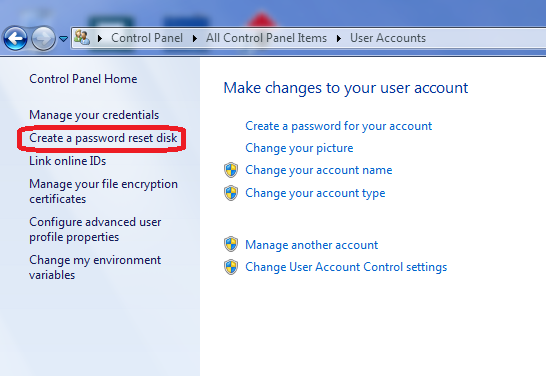
                                                   go to my computer
                                               

                             click on open control panel
                                                

                                                           clck on user account

                                       click on crate a password reset disk
                                           here is put your current password
                                                       

wait until finished progres


click finish
 
how to use this tricks and break windows password

 1st step= restart your computer

2nd step= for test put a wrong password

3rd step=connect your memory card or pendrive where you install recovery file

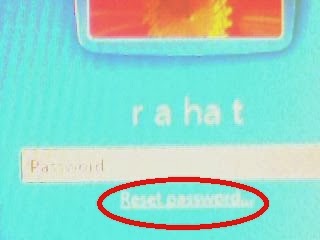
4th step= put you wrong password  and enter.windows says wrong password ..and you can see reset password option.


5th step=after clickin reset option if you are connect your memory card/pendrive then open a new window.

6th step=click next and enter a new password then finish


  if you can understand then you can watch this video

Read more
 

Computer Info Copyright © 2016 -- Powered by Blogger