Showing posts with label file. Show all posts

Monday, October 17, 2016

X plore File Manager v3 37 01 apk

,

Description
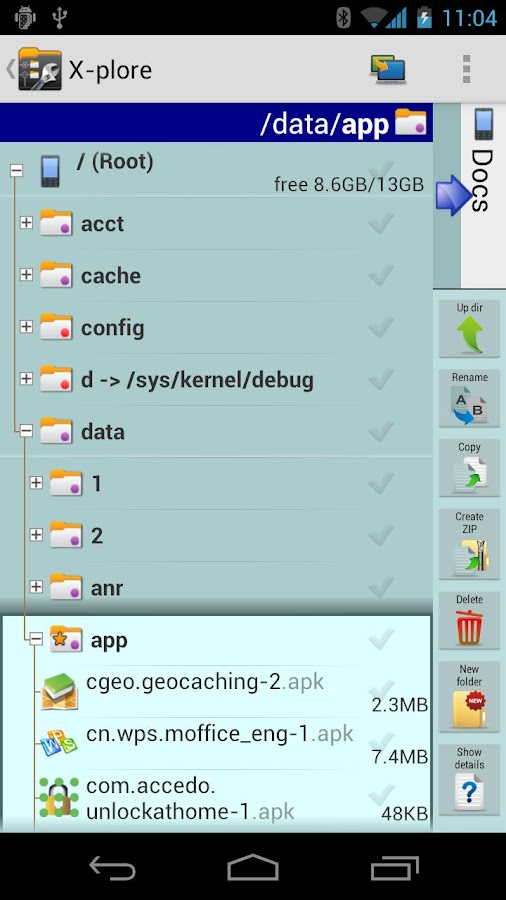
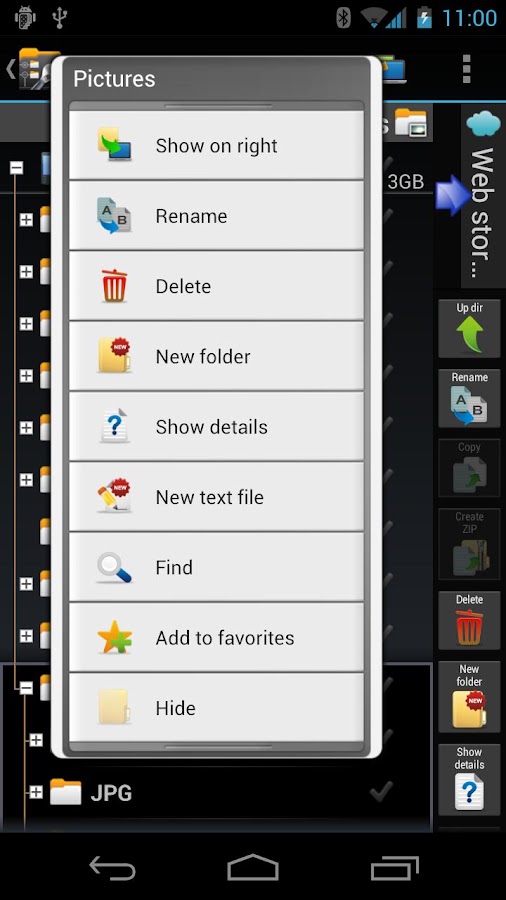
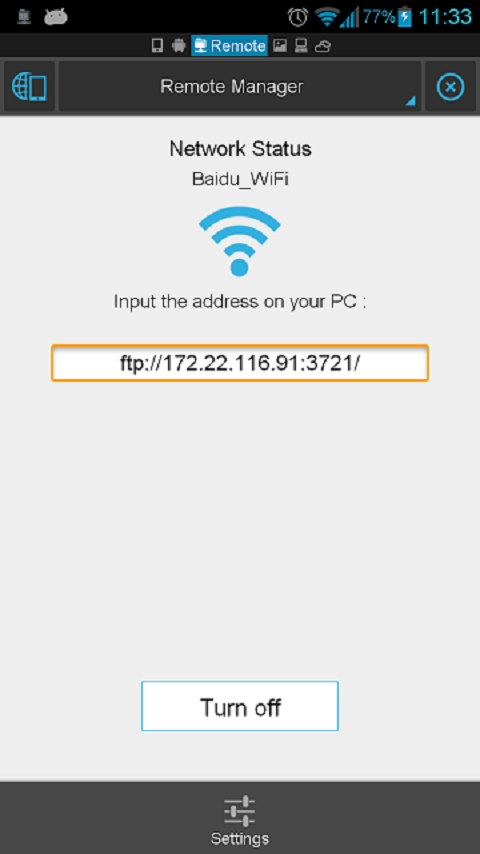
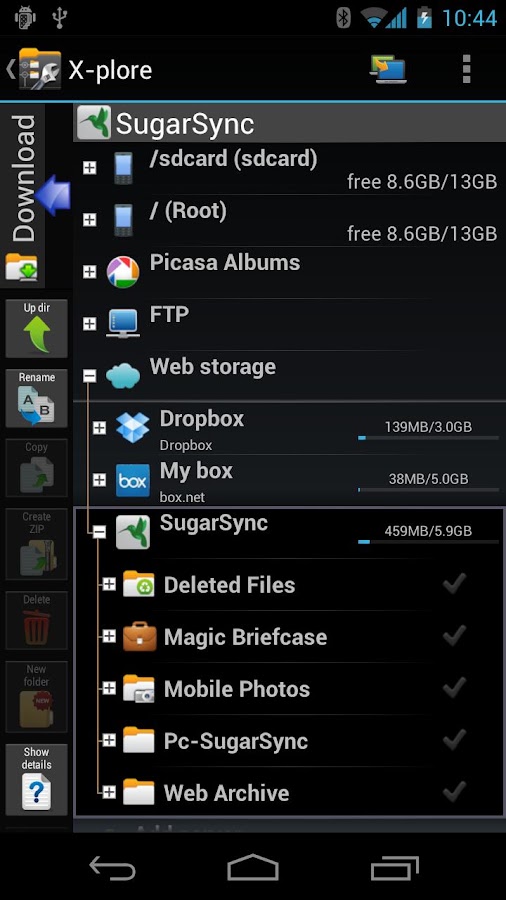
X-plore is a dual-pane explorer, which means that there are two folders shown at same time, and common operation such as copying files are done from one pane to another.And X-plore shows folder hierarchy in a tree view. This offers clear orientation on where in file system you currently are, and fast switching to other location.

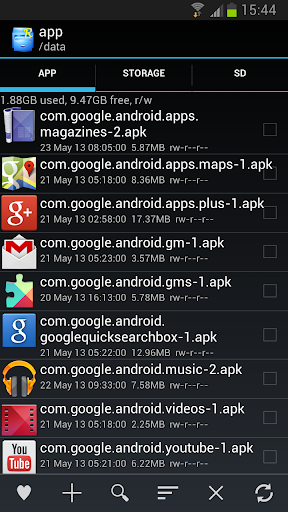
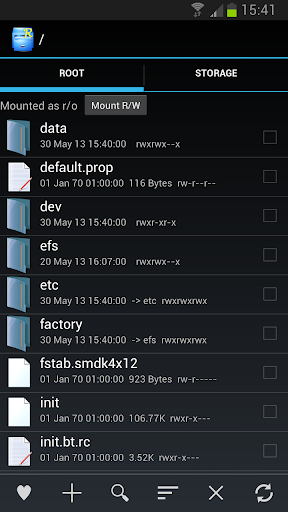
You may explore internals of the device, and if youre power user and have your device rooted, you can make changes to system data - backup files, remove unwanted applications, etc.

Highlights:
? Dual-pane tree view
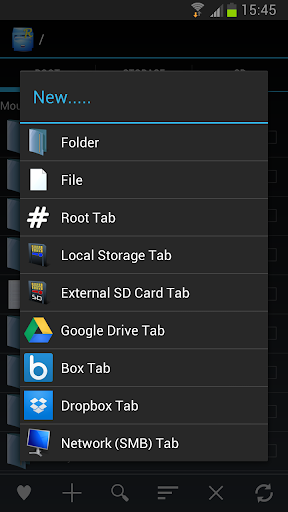
? Root, FTP, SMB, Sqlite, Picasa, Zip, Rar, 7zip explorer
? Cloud storage access: Google Drive™, Dropbox, Box.net, Mega.co.nz ***, SkyDrive, Webdav, Yandex.disk, Ubuntu One, 4Sync, IDrive, SugarSync, Dump Truck, Copy.com, MegaCloud
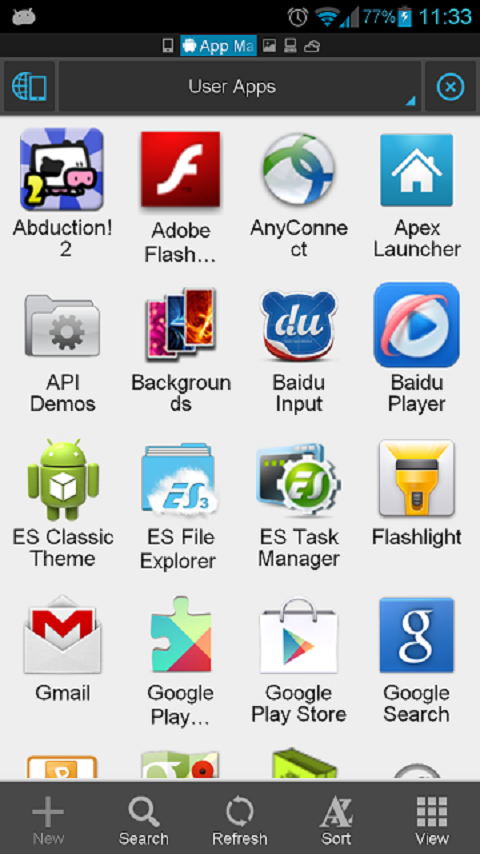
? Application manager
? Favorite folders
? Built-in viewers for images, video, audio, text
? Hex viewer
? Fast Image viewer with zoom and slide to previous/next images in folder
? Thumbnails for images and video as well as for various file types (depending on associated application)
? Multi-selection - always available, yet not disturbing
? View APK files as ZIP
? Share - send files by Bluetooth, email, or whatever the device supports, from any location
? Configurable buttons and key shortcuts
? Seamless work with Zip (as if it was normal folder)
*** marked feature is paid - it requires donation

Change Log
- Showing copy transfer speed
- Multi-select by click + long-click on file checkmark
- Showing image Exif data
- 7zip format (beta)

Images

Downloads
Download - Mediafire
Read more

Wednesday, September 21, 2016

Play movies in RAR file without extracting

,
Play movies in RAR file without extracting.
Most people like downloading movies or video files from internet, and those large files are split in several parts before being uploaded to the net. If you have downloaded movies from Rapidshare then you must have known that how troublesome is downloading those RAR video files and extract them later.

Just use this tool called “Dziobas Rar Player” that can play various internet downloaded movies with codecs like Divx or Xvid even without extracting the RAR files. The player is capable of playing files in formats AVI, MPGE, RMVB, OGG, MP3, RAR, MKV, MKA and some others.

Just download this tool and extract and run the DziobasPlayer.exe, You can then drag and drop the RAR files in the window and see the videos even without extracting.
Advantages of Dziobas RAR Player:
  1. Small and free.
  2. Play videos without the need to install codecs in the system.
  3. Play the movie RAR files even without extracting them.
  4. Also plays the corrupted RAR archive.
  5. Requires no installation.
The only disadvantage is that you won’t be able to seek videos.
Download Dziobas RAR Player
[Link 1] [Link 2]
Read more

Tuesday, September 6, 2016

How to Copy or Hide a File inside an Image

,
Have a secret file and want to hide it on your system from other users? Here is a simple but cool trick that will enable you to hide a file in an image. The trick is so cool that you won’t be able to find out if the image is hiding a file behind it or not.

The jpeg image will not only look like usual image file but also work like one. The image will not only hide the document but also open in the Picture Viewer as usual. Great isn’t it?

Steps to hide files behind an Image:
  1. Create a new folder (I created in drive C: named “a”).
  2. Place all the documents/files in it that you want to hide (I stored z.txt in it).
  3. Copy any image of yours in it (I stored x.jpg in it).
  4. Make a rar archive of all the files that you need to hide (I created one named z.rar).
  5. Now open cmd (Start->Run->cmd)
  6. Go to the folder’s location by typing cd location like for me it was cd C:a
  7. Now just type the following command with name that corresponds to your file

Hide a File inside an Image

copy /b x.jpg + z.rar x.jpg

 Hide a File inside an Image

The screen will look like as shown above.

Steps to see/recover file back:

Just rename the final image to rar that is x.jpg to x.rar

The archive will be having your file
Read more

Tuesday, August 2, 2016

ES File Explorer v3 0 5 5 apk

,

Description
ES File Explorer is a free, full-featured file and application manager.
It functions as all of these apps in one: file manager, application manager, task killer, cloud storage client (compatible with Dropbox, Google Drive, SkyDrive, Box.net, Sugarsync, Yandex, Amazon S3, and Ubuntu One), FTP client, and LAN Samba client.

It provides access to pictures, music, video, documents, and other files on both your Android devices and your computers.

ES File Explorer allows Android users, no matter where they are, to manage their resources for free. You can see and access all of your files from your mobile device and share them with others.
The app makes it easy to stay connected over 3G, 4G, EDGE, or Wi-Fi to share with friends, upload photos, and watch videos.

Features List:
* File Manager – Manage your files like you do on your desktop or laptop using Multiple Select, Cut/Copy/Paste, Move, Create, Delete, Rename, Search, Share, Send, Hide, Create Shortcut, and Bookmark; operations can be performed on local files (on your Android device) or remotely (on your computer)
* Application Manager – categorize, uninstall, backup, and create shortcuts to your apps
* Remote File Manager – when enabled, manage files on your phone from your computer
* Built-in ZIP and RAR support allows you to compress and decompress ZIP files, unpack RAR files, and create encrypted (AES 256 bit) ZIP files
* Built-in viewers and players for various file types, including photos, music, and videos; supports third-party applications, such as Documents To Go, for opening others
* Shows thumbnails for APKs and images
* Text viewers and editors
* Access your home PC via WiFi with SMB
* Functions as your FTP and WebDAV client. Manage files on FTP, FTPS, SFTP, and WebDAV servers just like you manage files on your SD card
* Supports Dropbox, Box.net, Sugarsync, Google Drive (Google Docs is now a part of Google Drive), SkyDrive, Amazon S3, Yandex and more.
ES File Explorer is an enhanced cloud storage client with more functions than the official versions,
it can save photos, videos, and other files to your internet drives and share them with others.
* Bluetooth file browser You can copy and paste files between Bluetooth ready devices. It supports OBEX FTP for browsing devices and transferring files between Bluetooth devices.
* Kill tasks with a single click -- includes a simple widget for automatically killing tasks, with an ignore list to ignore the applications you want to keep running. To use this feature, you must have ES Task Manager module installed.
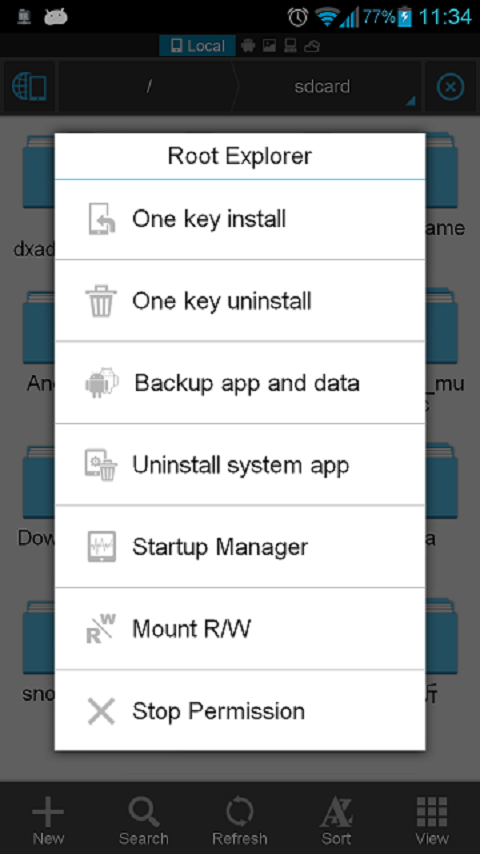
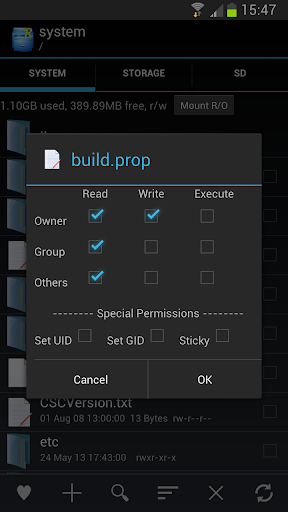
* Root Explorer -- the ultimate set of file management tools for root users. Provides access to the entire file system and all data directories, and allows the user to change permissions.
* Developers can visit our website for the developer interface for picking files from your applications, emailing attachments, etc.

Change Log
V3.0.5.5:
Hot Fix for V3.0.5.4: SD Card analyst show black on some 2.3 devices.
V3.0.5.4:
1) ES Task Manager update to match ES File Explorer V3.
2) Set Waterdrop gesture location
3) Support Thai/Farsi language
4) Support wired LAN

Images


Downloads
Download - Direct Link (Android 2.1 and up)

Download - Direct Link ( Android 1.5 | 1.6 | 2.0 )
Read more

Sunday, July 24, 2016

How to recover any file from corrupted or broken HDs SSDs or SD cards

,

A couple weeks ago, I lost a Raspberry Pi SD card to corruption that didnt even have backup superblocks to restore. There seemed to be nothing to do about it since I couldnt mount it. Restoring the system wasnt a big deal. However, I really wanted some of the cpp, h, js, php, sh, and other files that I had changed a good bit but hadnt yet backed up or committed. Sure we all back up and/or use git/svn but we have to remember Murphys Law.

This is a guide on how to easily recover those files that you really want but hadnt backed up.

Needed packages

To do this, we are going to use scalpel, xxd, diff, and grep (So we are most definitely using Linux)

You will already most likely have xxd, diff, and grep on your system. To install scalpel, run:
sudo apt-get install scalpel
or yum or pacman or whatever package manager you use.

**Note: It is probably a good idea to make an image of the drive and use scalpel on that if you are able.

Editing Scalpel configuration

The default scalpel configuration file is located at /etc/scalpel.conf
All you need to do is comment out the file types you dont care about and add the filetypes you do care about that arent in there.
To create custom scalpel configurations, we will use a little bit of common sense and xxd as a hex dumper.
Find a different file with the same file type or an older copy of the file you want and run the following command:
xxd -l 0x04 filename.type; xxd -s -0x04 filename.type

This will get the first 4 and last 4 bytes of the file. Which should be enough to make the filetype unique, though you can change this as needed. You should see a pattern with a lot of files.
For instance, my sh files (the ones I wrote) often start with #!/b and end with sac. or fi..
and my cpp files often start with #inc or // and end with }.
Now we will take these hex patterns, reformat them as x?? and put them into the scalpel.conf.
You should use REVERSE whenever the file may continue multiple instances of the end statement. You may also need to increase the file size from 50000 to something much bigger for larger files.

Here are some of my custom scalpel configurations:

php         y        50000    x3cx3fx70x68x70        x3fx3e REVERSE
js y 50000 x3cx73x63x72x69x70x74x20x74x79x70x65x3dx22x74x65x78x74x2fx6ax61x76x61x73x63x72x69x70x74x22x3e x3cx2fx73x63x72x69x70x74x3e 
cpp        y        50000   x23x69x6ex63              x7dx2e  REVERSE      
cpp        y        50000   x2fx2fx20                      x7dx2e             REVERSE
h            y        50000   x23x69x66x6e              x64x69x66 REVERSE
sh           y        50000   x23x21x2fx62              x73x61x63 REVERSE


Running Scalpel

Once your scalpel configuration is finished, you need to start extracting the files. This will probably take a while and will get a lot of files (multiple copies of each that match on your system). It wont know the filename or newest version but we will look at that later. You can run scalpel with the following command:
scalpel -c /etc/scalpel.conf yourcopy.img -o output
or the following if you didnt make a copy of your HDD (you will have to specify the appropriate drive and partition number).
scalpel -c /etc/scalpel.conf /dev/sdx# -o output

Once everything is finished it will be in the output folder and we can look for the newest version of your file.

Finding your files

cd into the output directory and you can see all the different filetypes organized.
cd output; ls
For all your graphical file types, i.e. videos and pictures, they should all be listed there and you will have to rename them. 
For your other files, we can use grep recursively to find our newest version. This unfortunately requires you to remember things. It is a good idea to use a function or variable name that you used in order to find your files. Ex:
grep -R "playing()" ./
Searches for the function playing in all your files, this could give you matches in js, php, cpp, c, or h files.
grep -R "::CurlWriter" ./cpp*
Searches for the definition of CurlWriter in all of the cpp files
grep -R "VoiceCommand" ./h*
Searches for the variable or function VoiceCommand in all of your header (h files)

These will probably give you a couple of different results. In my case, these were all different versions of my file. This is a really good chance to use diff. All you have to do is select two of the files and diff to see the differences. Ex:
diff ./sh-5-1/00135386.sh ./sh-5-1/00135393.sh

Once you start getting used to this, you will be better about searching for the newest function or variable name you remember. Once you narrow it down to the newest copy of your file, you can move it elsewhere.
Ex:
mv ./sh-5-1/00135393.sh ~/ImportantFile.sh


There it is, this should allow you to recover almost any file you have created from a corrupted or bad HD, SSD, or SD card.

Places you can find me
Read more

Tuesday, May 17, 2016

Cannot delete a file

,
Many of the windows users may have encountered this problem. Sometimes we cannot delete a file and is suspicious of being a virus or it consumes a lots of disc space. There is a small software available for this. The software deletes the file on the next boot. But before using this software check with the following ways.
  • The simplest reason for this is that the file is open. Close the program using the file and then try deleting. Sometimes, though you’ve shut down the application running the file, the program may still be lurking in the background. Press [Ctrl] + [Alt] + [Del] to bring up the task manager and locate and end the application.
  • Another way is rename the file extension and then delete. To do this first you need to view the file extension.
    • To do this, go to “Tools >> Folder Options” in any Explorer window.
    • In the “Folder Options” window, select the “View” tab
    • Uncheck the box labeled “Hide extensions for known file types” and click “OK”.
    • Now that you can view the extensions, change the extension of the file you want to delete and then try deleting.

  • Another easy way is restart your PC in safe mode. Locate the file and then delete it.
  • If all the above efforts doesnt work you can use this software. Simply drag-drop the file into the window of this software, it will be deleted on the next boot. Click to download the software (1.95 MB)
Read more

Saturday, March 26, 2016

Best Android Apps Root Explorer File Manager for Android

,

Root Explorer is the ultimate file manager for root users. Access the whole of androids file system (including the elusive data folder!).

Features include multiple tabs, Google Drive, Box, Dropbox and network (SMB) support, SQLite database viewer, Text Editor, create and extract zip or tar/gzip files, extract rar archives, multi-select, execute scripts, search, remount, permissions, bookmarks, send files (via email, bluetooth etc), image thumbnails, APK binary XML viewer, change file owner/group, create symbolic link, "Open With" facility, MD5, create shortcuts.

For fast, friendly support simply email us: support@speedsoftware.co.uk

We will always try to help with any problem you may have with the app. If we cant help then you can have a refund, no questions asked.

Although 16,000+ five star ratings will tell you that most people are very satisfied customers. Make sure you read as many comments as possible to get a good idea of what most people think of the app.

We still respect the old 24 hour refund policy. So if youre not happy with the app just email us within 24 hours and you can have a refund. Well need to know the order number, which you can find on the emails sent to you by Google when you downloaded.

Why compromise? Get the original and the best!

New permissions:

Full network access - Required for network and cloud access. No information is passed to us over the internet.

Add or remove accounts - Used by the Google Drive SDK to add a new account if desired. No changes are made to existing accounts and no details accessed apart from the account name.

Find accounts on the device - Used to list available accounts for logging into Google Drive.

Prevent from sleeping - Used to stop the device sleeping during long operations so they are not interrupted.


  • Version: 3.1.6
  • Size: 1.9 MB
  • Required: Android 2.3 and up


Read more

Friday, March 11, 2016

Voicecommand image file and controlling electronics with your voice

,
With the introduction of the Raspberry Pi B+, a lot of people are finding image files arent working unless updated first. Because of this, I went ahead and made a fresh image file for voicecommand on Raspbian that is A/B/B+ compatible.

You can download it at:
https://mega.co.nz/#!MM8W1JxR!4PlZ_1-dumasDUCYRI4LuiBwEJgtqhfoin0R8ls90NQ

Ive also taken the liberty of putting wiringPi and pilight on it. This means its easier than ever to control electronics with your voice (Ill post more on that later).
You can read more about it at the hackaday projects page here.

And here is a quick video demo:

Consider donating to further my tinkering since I do all this and help people out for free.


Places you can find me
Read more
 

Computer Info Copyright © 2016 -- Powered by Blogger